
Feature
An online booking page clients can use on their own
Most bookings still start with a message: what times do you have, how much is it, who is working Thursday. Your booking page answers all three before anyone asks. It lists your services with prices, your team and your open times, and a client books in a few taps from the link you share on Instagram, Google or your website.
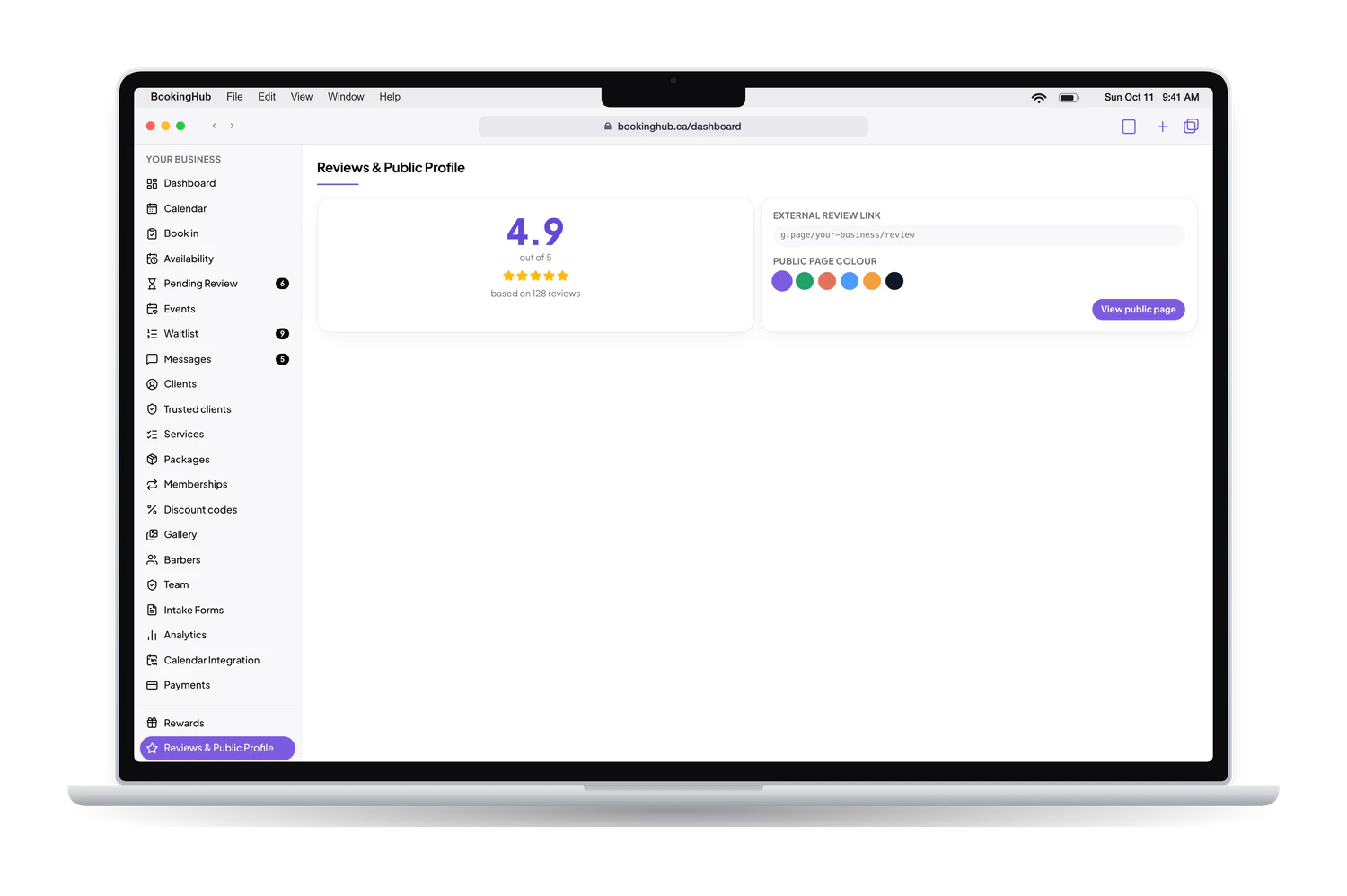
Online booking page
What it fixes
The back and forth over times
A client asks when you are open, you send three times, they reply the next day and two are gone. On your booking page they only see the times that are actually open for the service and team member they chose, and the slot is theirs the moment they confirm. Nobody waits on a reply.
Bookings that only come in during business hours
People decide to book at night, on the bus, between two meetings. When booking means calling or sending a message, those clients wait or go elsewhere. Your page takes bookings at any hour. If you prefer to look at each one first, you can approve every request, or only the ones from new clients.
A sign-up wall before the first click
Clients asked to create an account before they see a single time tend to leave. Here they pick the service, the team member and the time, and fill in the whole form first. Signing in with Google or an email link is the last step, and it is what lets them cancel or reschedule later on their own.
The page is yours to shape: pick its colour theme and the order of its sections, add a photo gallery, your hours, your location or service area and a link to your reviews elsewhere, then paste a Book now button on your own website.
Setup
How to set it up in BookingHub
Add your services
In Services, add what you offer with its length and its price, a price range or contact for pricing. Each service can use its own booking model, such as a time slot, a request for a window or a class.
Set when you can be booked
In Availability, use your business hours, give each team member their own weekly schedule, or open slots by hand. Only the times you open appear on your page.
Share your link
Put your page link in your Instagram bio, your Google listing and your text messages, and paste the Book now button on your website. Clients land straight on your services.
Questions
Common questions
Do my clients need to create an account?
They sign in with Google or an email link, and only at the end. They choose the service, the team member and the time and fill in your form first, so nothing is lost along the way. Their account then shows upcoming and past appointments and lets them cancel or reschedule within your cutoff.
Can I check bookings before they are confirmed?
Yes. You choose between booking instantly, approving every request, or approving only new clients. Trusted clients can skip approval, so your regulars still book in one go while a first-time client waits for your answer. Each request shows up for you to accept or decline.
Can clients choose who they book with?
Yes. After picking a service, a client sees the team members who offer it and can choose one or pick no preference. The times shown are the ones that person actually has open, based on their own hours, so a client never books someone on their day off.
Can I put the booking page on my own website?
Yes. Copy the Book now button and paste it on your website, and it opens your booking page. You can also share the page link anywhere you talk to clients: your Instagram bio, your Google listing, an email signature or a text message.
Can I change how my page looks?
Yes. You pick a colour theme and the order of the sections. The page can show your services with prices, your team, a photo gallery, your hours, your location or service area, and a link to your reviews on another site.
Run your bookings from one place
Create your account, add your services and share your booking page today. Free during early access.