
Feature
One calendar for your whole team
A team runs on one question: who is available when. Answering it from three phones and a paper agenda is how double bookings happen. In BookingHub each team member has their own calendar, hours and services, and you see everyone in day, week or month view, with walk-ins and phone bookings on the same screen.
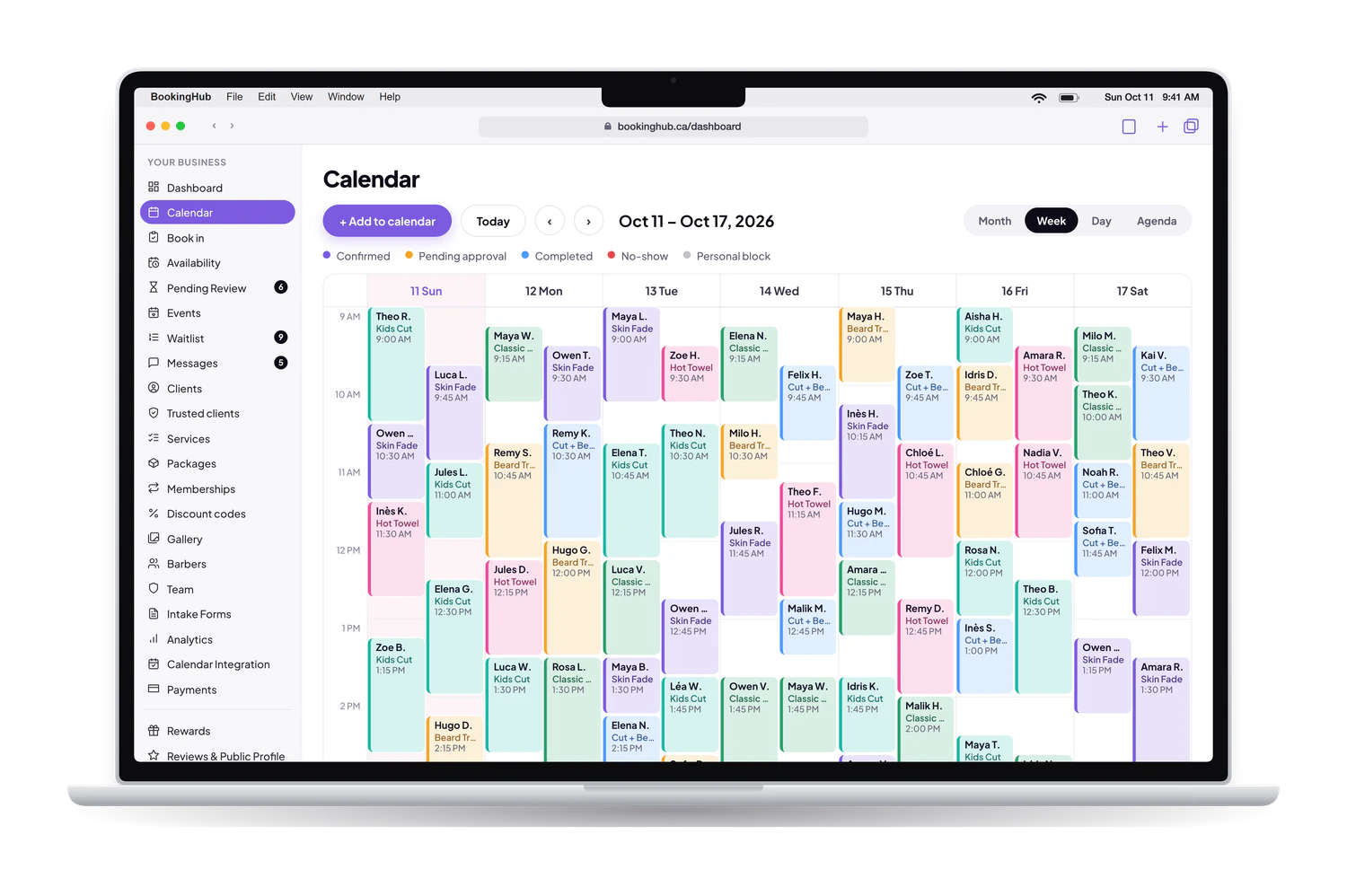
Team calendar
What it fixes
Hours that differ from person to person
One person works mornings, another evenings and weekends, a third is off every other Friday. Each team member can follow the business hours, have their own weekly schedule, or open slots by hand. Clients only see the times when the person they chose can really be booked.
Walk-ins and phone bookings off the books
Bookings taken at the counter or over the phone often live on a sticky note until someone has time. Book in is a front-desk screen that puts them on the same calendar in a few clicks, even with only a phone number, so what the screen shows is what the day holds.
Everyone with the same access
A new hire does not need the same access as the owner, and someone who only checks the schedule should not be managing it. Invite each person with a role: owner, manager, team member or viewer. Each team member keeps their own calendar, hours and services, and sees what their work needs.
Buffer time between appointments and the times you block off on the availability grid keep the booking page honest, and you can copy a good week forward instead of building the next one from scratch.
Setup
How to set it up in BookingHub
Invite your team
In Team, invite each person with their role: owner, manager, team member or viewer. Set the services each team member offers, so clients only see them for those services.
Set each person's availability
In Availability, give each team member business hours, a custom weekly schedule or slots opened by hand. Block off holidays, and copy a week forward when the schedule repeats.
Run the day from the calendar
Use day, week or month view to see the whole team. Add personal blocks, drag manual entries to a new time, and use Book in for walk-ins and phone calls.
Questions
Common questions
Can clients choose a specific team member?
Yes. A client picks the service, then chooses a team member who offers it or selects no preference. The times shown come from that person's own availability, so a client never books someone on their day off or outside their hours.
Can a client book several team members at once?
Yes, with group bookings. The client books several team members together and only sees the times when all of them are available. It suits services that need two people at the same time, or a group that wants to be looked after together.
Can I control what each person has access to?
Yes. When you invite someone, you give them a role: owner, manager, team member or viewer. Roles keep the running of the business with the people who manage it, while everyone else gets access that fits their work, down to viewing only.
Can I add buffer time between appointments?
Yes. Buffer time leaves a gap after an appointment for cleanup, notes or travel, and every service has its own length, so the calendar blocks the real time a service takes rather than a fixed slot. Clients do not see the buffer, only the times that remain.
Can I move an appointment by dragging it?
Manual entries, like walk-ins and personal blocks you added yourself, can be dragged to a new time on the calendar. Bookings clients made online are moved with a reschedule instead, which keeps the client informed of the new time.
Run your bookings from one place
Create your account, add your services and share your booking page today. Free during early access.